The new FACEIO website brings together updated developer documentation, localized pages, accessibility guidance, and dedicated product pages for facial authentication, Meeting Shield, and ID Match.
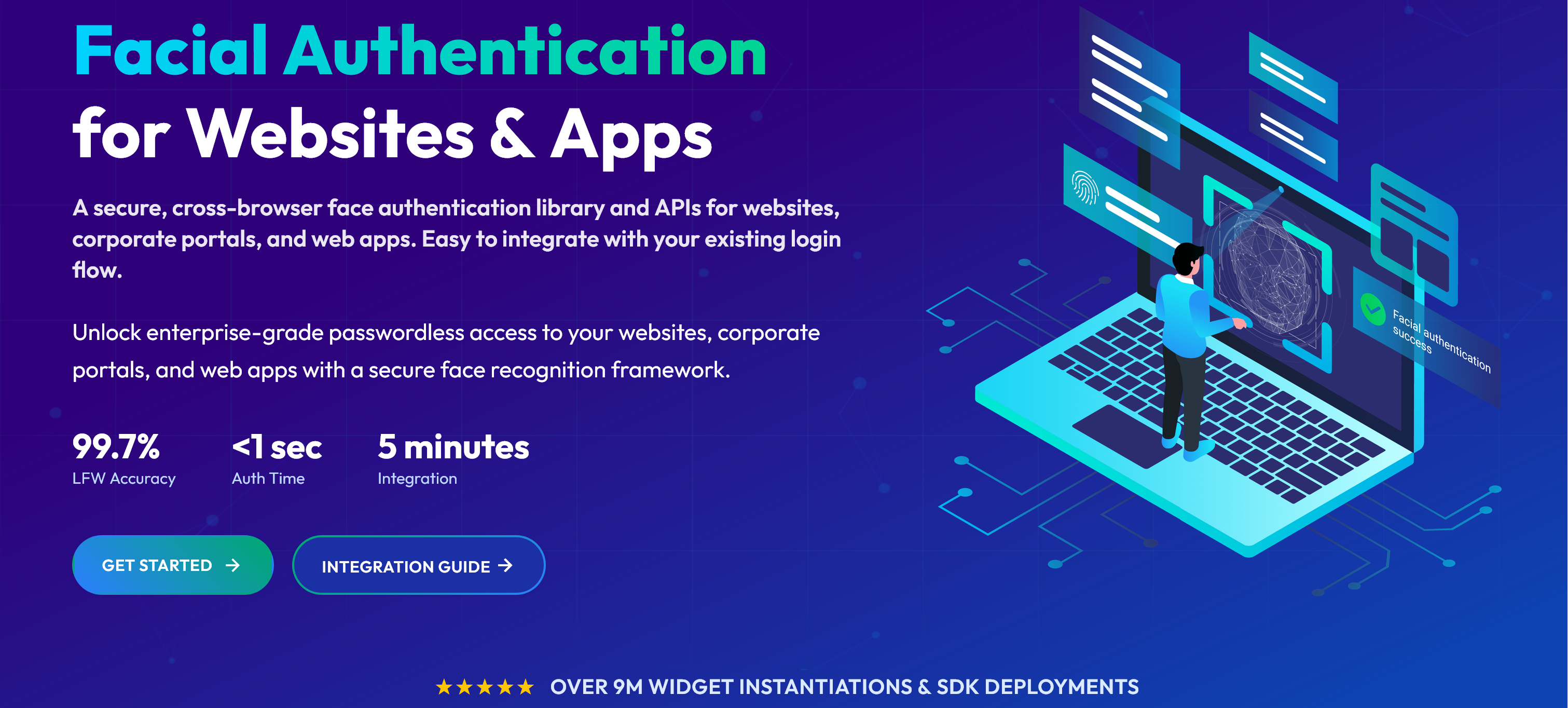
For website owners and businesses, it makes the options easier to understand. For developers, it provides a clearer path from creating a FACEIO application to integrating the fio.js JavaScript library and connecting authentication results to an existing backend.
Updated Documentation, From Your First Integration to Production
The documentation follows the work developers need to do: create an application, configure it, integrate the widget, and handle the results.
Start with Getting Started, our guide to a 5-minute facial authentication integration. It walks through creating an application in the FACEIO Console, obtaining its Public ID, reviewing the security and privacy settings, and adding fio.js to your website or web app.
Then use the Integration Guide for method parameters, return values, error codes, and framework examples. It covers enroll() for registering new users, authenticate() for returning users, and session handling with restartSession().
The Developer Center connects these resources with the references you need as your implementation grows:
- Facial ID reference: understand the identifier returned after enrollment and how to associate it with your own user accounts.
- REST API reference: manage Facial IDs and use the documented backend endpoints while keeping private API keys on your server.
- Webhook documentation: receive enrollment, authentication, and Facial ID deletion events in your backend.
- Security best practices: review PIN Code validation, liveness settings, domain restrictions, and the controls needed around your login flow.
- Privacy best practices: plan notices, consent, retention, deletion, and recognition-engine deployment.
Already using FACEIO? Revisit these references before your next release, especially if you are adding webhooks, changing security settings, or updating account-deletion workflows.
Read FACEIO in Your Language
The website and developer documentation are now available in four localized versions alongside English:
Use the language selectors in the header or footer to move between equivalent pages. Technical names such as fio.js, Facial ID, API methods, and error constants remain unchanged so they stay consistent with the code you write.
Website localization is separate from the embedded experience: the FACEIO widget supports more than 70 languages, helping teams provide enrollment and authentication flows for users in different markets.
Facial Authentication for Websites, Web Apps, and Corporate Portals
FACEIO facial authentication remains the core of the platform. It lets users enroll and authenticate through a browser widget, using the device's camera without requiring a native mobile app or a dedicated biometric sensor.
Developers load fio.js, initialize it with the application's Public ID, and connect enrollment and authentication to their existing interface. The library works with Vanilla JavaScript, React, Vue, Next.js, and other JavaScript stacks.
Your backend keeps control of accounts, sessions, recovery, and authorization. FACEIO does not store, handle, or access biometric hashes; the selected facial recognition engine manages them. The updated documentation explains these responsibilities and the available cloud and PixLab Insight on-premises deployment options.
Meeting Shield: Video Risk Signals for Business Meetings
FACEIO Meeting Shield is a Chrome extension for supported Google Meet, Zoom Web, and Microsoft Teams Web sessions.
It analyzes visible meeting video and reports suspicious signals associated with deepfakes, synthetic video, replayed footage, and manipulated facial motion. Its local-first analysis is designed to avoid uploading raw meeting video.
Meeting Shield is intended for situations such as remote interviews, executive calls, financial consultations, and customer meetings. It gives teams additional information to review before sharing sensitive information or making a decision. These signals support the organization's verification process; they do not establish a participant's identity or guarantee that every manipulated video will be detected.
Visit the product page to review how the extension works and request access through the FACEIO Console.
ID Match: Compare a Live Selfie with an ID Portrait
FACEIO ID Match brings a guided selfie-to-ID comparison into your website or web app.
It uses the same application setup and fio.js integration pattern as facial authentication. Calling idmatch() opens a popup that captures a live selfie and an ID document, performs a liveness check, and compares the selfie with the portrait extracted from the document. Your application can also request selected document fields.
Document scanning, portrait extraction, and optional field extraction are powered by PixLab DOCSCAN. Submitted images and processing data are handled in RAM and deleted immediately after the result is ready or the session fails. The processing pipeline retains no submitted images, document data, or scan logs.
ID Match compares the two faces. It does not authenticate the document, perform KYC or AML checks, or decide whether to approve a user. Your application determines how to use the returned result and any requested fields.
Accessibility Is Part of the Integration
The updated website also explains the FACEIO widget's accessibility features: visual and audio instructions, keyboard navigation, and screen-reader support with compatible browsers and assistive technologies.
These features help guide users through enrollment and authentication. Before release, test the complete experience within your own website or web app and provide another way to access an account for users who cannot or do not want to use facial authentication.
Start with the New Guides
Whether you are adding passwordless face login to a customer website, integrating facial authentication into a corporate portal, or exploring Meeting Shield and ID Match, start with the product pages and updated documentation.
Open the FACEIO Console to create an application and obtain its Public ID, then follow the Getting Started guide to integrate fio.js.
For explanations and implementation articles, explore the FACEIO Knowledge Center. For public technical questions, join the FACEIO Community Forum.