AI-generated photos and videos now look real enough to fool most people. A fake image can spread on social media in minutes, and a convincing deepfake video can damage a reputation or support a scam. Telling real content from fake has become a daily need, not only for journalists.
Today we are making PixLab Forensic free for everyone. It is a browser-based tool that helps you check whether a photo or video is AI-generated, edited or authentic, and shows you the evidence behind the answer. There is nothing to install, and most features work without an account.
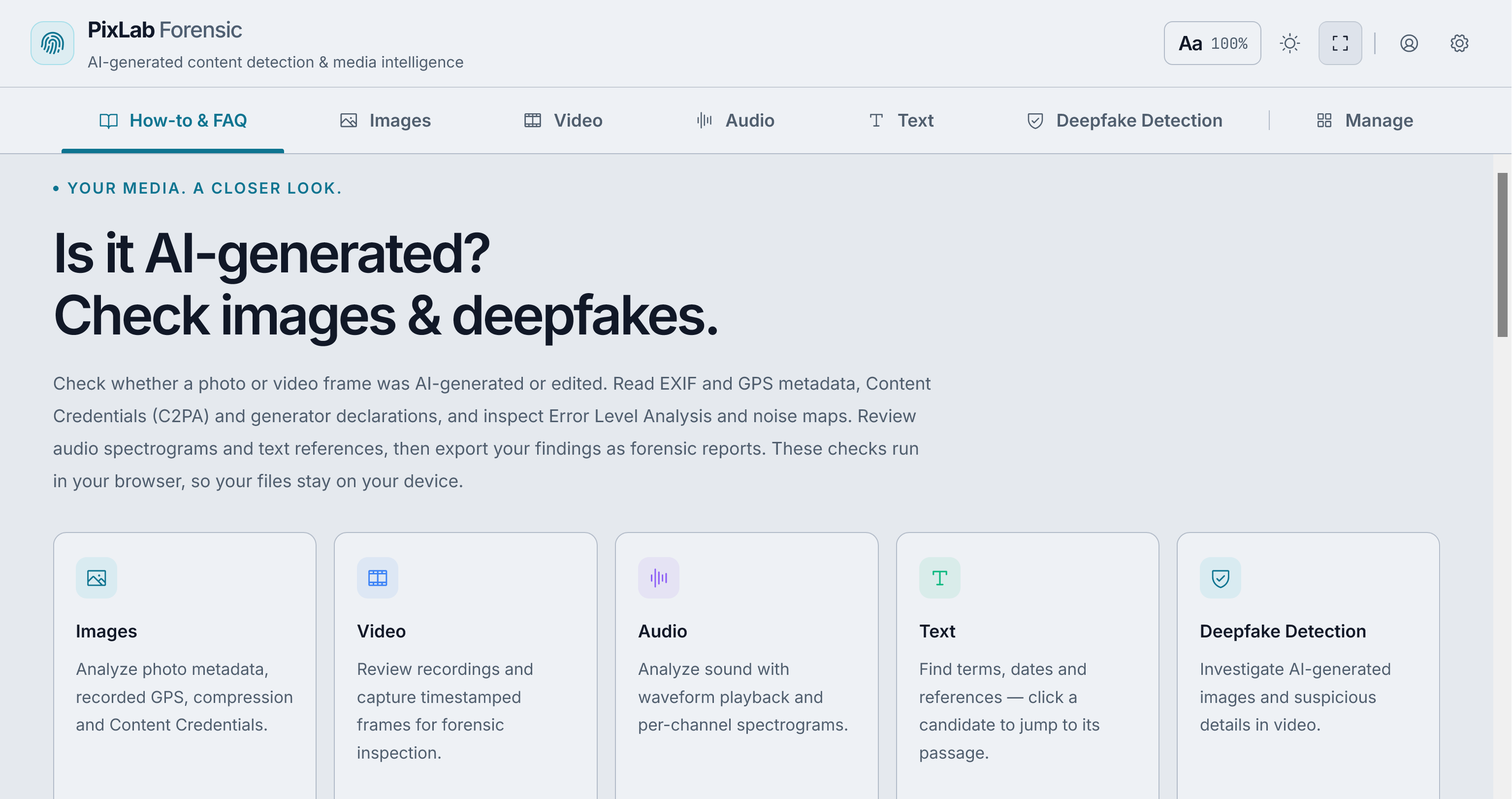
What is PixLab Forensic?
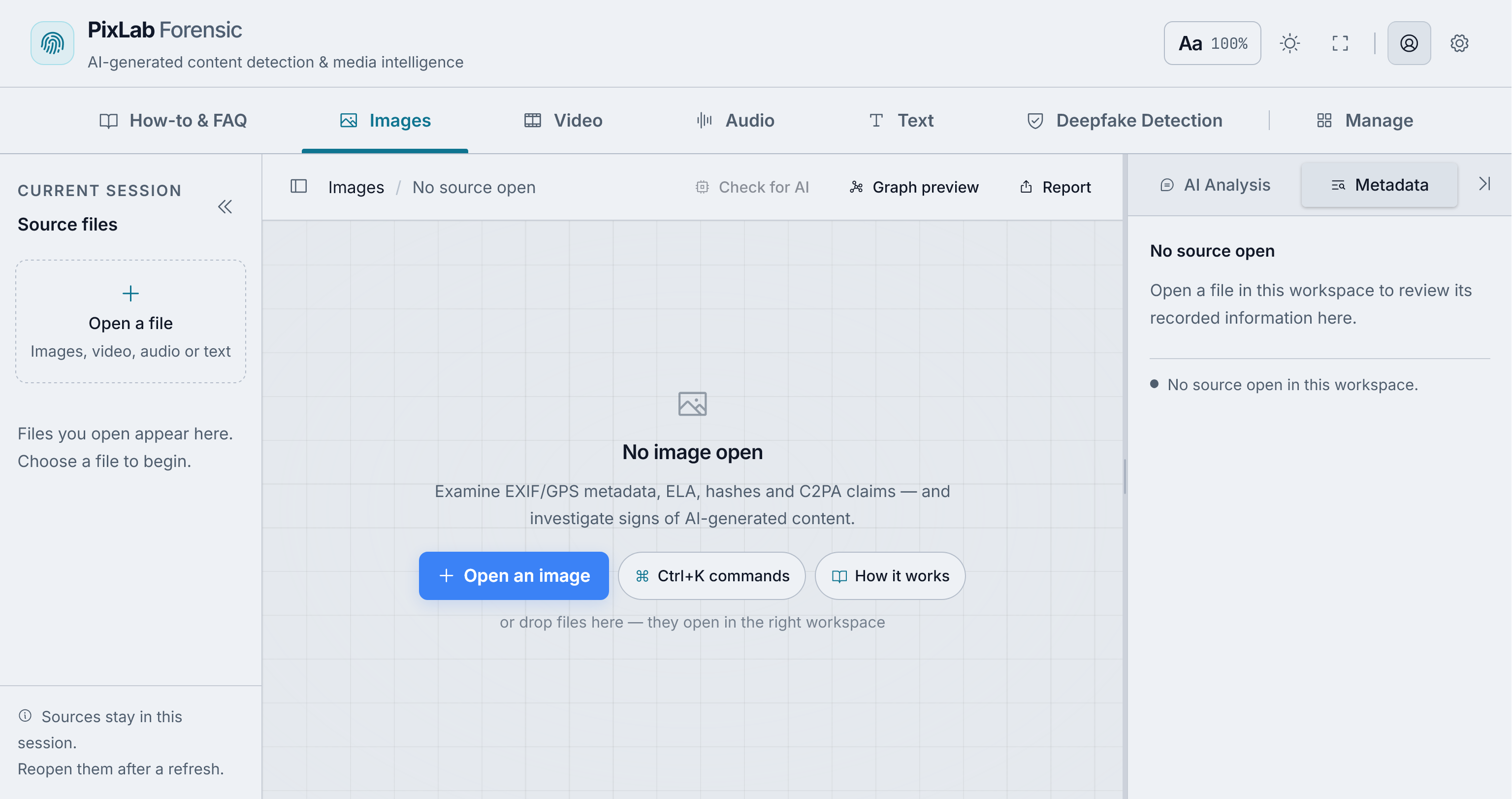
PixLab Forensic brings several verification tools into one place. You open a photo, video, audio file or text in your browser, and it shows you what the file contains and where it may have been changed. For photos and video frames, an optional AI check estimates whether the content was generated by AI.
It is built for people who need a reliable answer, such as journalists, fact-checkers, researchers, investigators, moderators and anyone who wants to check content before sharing it.
What you can do with PixLab Forensic
- Detect AI-generated images. Run the AI check on a photo to see whether it was likely created by an AI image generator. The result comes with an explanation and the signals the detector found.
- Spot deepfakes in videos. Pause a video on the moment you want to check, capture that frame and run the AI check on it.
- See hidden photo data (EXIF). Most photos carry information you cannot see: the camera or phone model, the date it was taken, the editing software used and sometimes the GPS location. PixLab Forensic reads this data and shows the location on a map.
- Check Content Credentials. Some images include a digital label, also called C2PA, that records how they were made. It can show that an image came from an AI tool such as Adobe Firefly, and whether the label was signed.
- Find edited areas. Error Level Analysis (ELA) and noise maps highlight parts of a photo that were saved differently from the rest, which can point to editing.
- Find copies and known files. Each file gets a digital fingerprint, so you can spot exact copies and similar-looking images, or compare files against a list of known images.
- Review audio and text. Listen closely to recordings with a waveform and frequency view, and search text for links, emails and dates.
- Save and share your findings. Keep your files and notes in a project and export a report as a PDF or data file.
How to check if a photo is AI-generated
- Go to forensic.pixlab.io and open the photo in Deepfake Detection. The local checks start right away, and the photo stays on your device.
- Read the list under "What the file says". It shows clues found inside the file, such as an AI label in the Content Credentials, the editing software used, or a preview image that no longer matches the photo.
- For a second opinion, choose Check for AI. You will be asked to turn on AI analysis and sign in with a free PixLab account the first time.
- Compare the AI result with the clues from the file and with other sources before you decide.
How to check a video for deepfakes
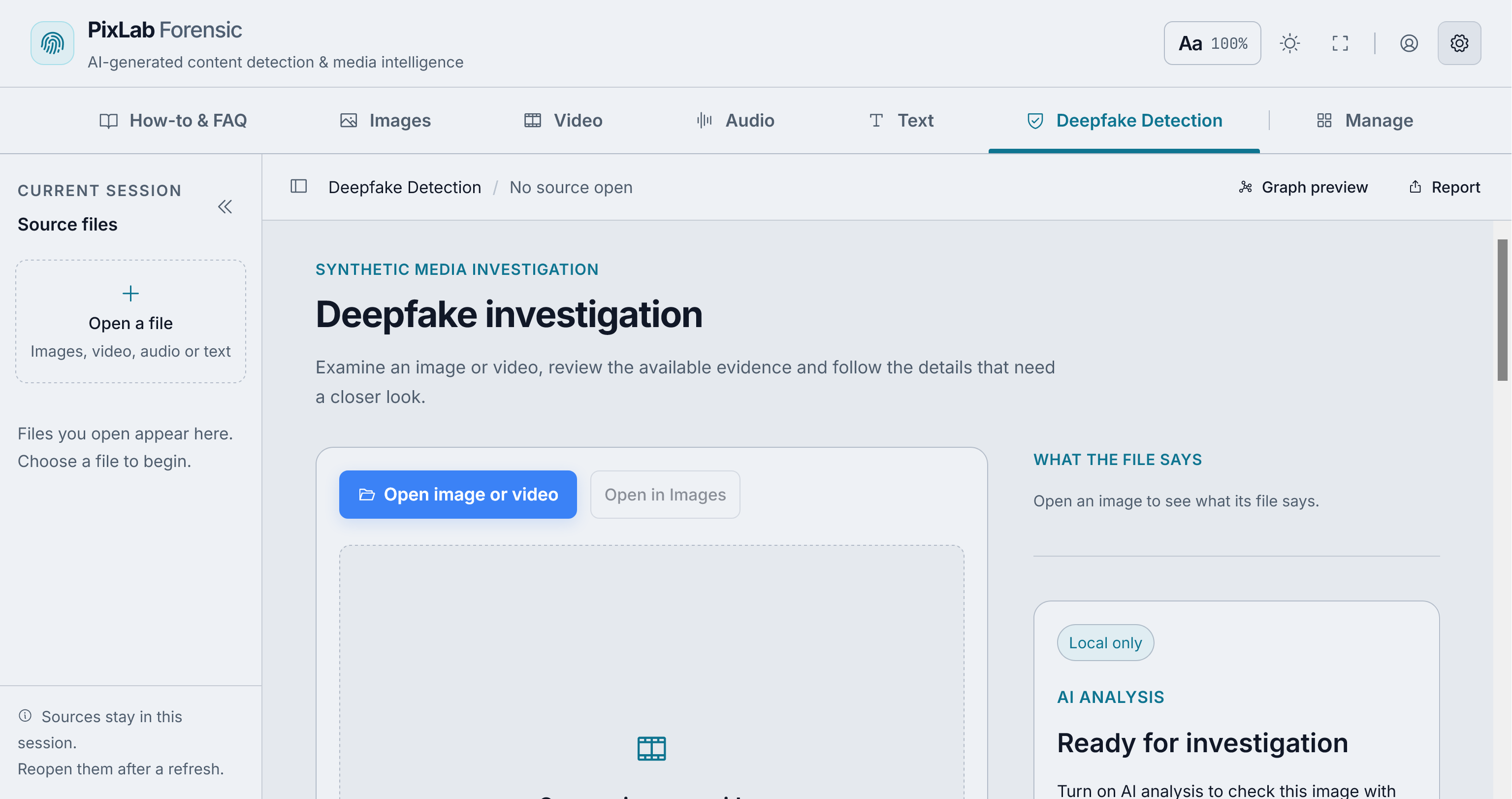
- Open the video in Deepfake Detection or in the Video tab.
- Play it and pause on a frame where the face or scene looks suspicious.
- Capture the frame and choose Check for AI.
- Repeat for other key moments. Each result applies only to the frame you checked, not to the whole video.
Deepfake detection powered by FACEIO technology
PixLab Forensic does not start from zero. Its deepfake detector is borrowed from FACEIO Meeting Shield, our Chrome extension that warns users about deepfake and fake video during live calls on Google Meet, Zoom, Microsoft Teams and Webex.
It also uses the face anti-spoofing technology behind FACEIO face spoof protection, which helps FACEIO detect people trying to fool face login with printed photos, replayed videos, phone screens or masks.
The same technology now helps you check a single photo or video frame, together with the evidence stored in the file.
Your files stay on your device
Photos, videos and documents under review are often private. PixLab Forensic is designed with that in mind:
- Reading photo data, GPS, Content Credentials, editing checks, video frames, audio and reports all run inside your browser. Opening a file does not upload it.
- AI analysis and online maps are off by default. When you choose Check for AI, only the photo or frame you are checking is sent for analysis. For text, only a short excerpt is sent.
- Saved projects stay in your browser, not on our servers.
What the results mean
No tool can prove with full certainty that a photo or video is real. Photo data can be edited or removed, and editing checks can react to normal saving and resizing. An AI check gives an estimate, not proof, and a result of "no AI generation detected" does not guarantee that a photo is unedited.
This is why PixLab Forensic shows each clue separately and explains its limits. You get the evidence, and you make the final decision.
Free to use
The browser tools are free, with no account and no installation. The optional AI check needs a free PixLab account, and plan limits may apply.
Frequently asked questions
Is PixLab Forensic free? Yes. All browser tools are free and work without an account. The optional AI check needs a free PixLab account, and plan limits may apply.
Do I need to install anything? No. PixLab Forensic runs in a modern web browser on a computer or phone.
Are my files uploaded? No. Opening a file does not send it anywhere. A photo, video frame or text excerpt is sent only when you choose an AI check.
Can it detect AI-written text? No. The Text tab helps you search a document and follow its links, emails and dates, but it does not detect whether text was written by AI.
Can it check a whole video for deepfakes? Not yet. Capture the frames you want to examine and check each one. Each result applies only to that frame.
Can it prove that a photo is real? No tool can do that alone. PixLab Forensic shows you the evidence in the file and an optional AI estimate, so you can reach a decision with other sources.
Learn more
- Try it now: PixLab Forensic
- Product overview: PixLab Forensic on pixlab.io
- Further reading: PixLab Forensic: A Free Browser Tool for Checking Whether Media Is Real
- For live video calls: FACEIO Meeting Shield
- Face anti-spoofing: FACEIO face spoof protection
Start checking photos and videos with PixLab Forensic →