The PixLab Tilemap Editor Now Exports to Godot, Unity and Phaser

The PixLab Tilemap Editor is a free tool for painting 2D game levels in your browser. You pick tiles from a tileset, paint them on a grid in layers, and export the result. We just gave it a thorough update: game engine export, a redesigned workspace, new tools, safer saving and a long list of fixes.

What hasn't changed: it's still free, there is still no account, and your projects still never leave your browser.

Open the editor · Read the feature tour
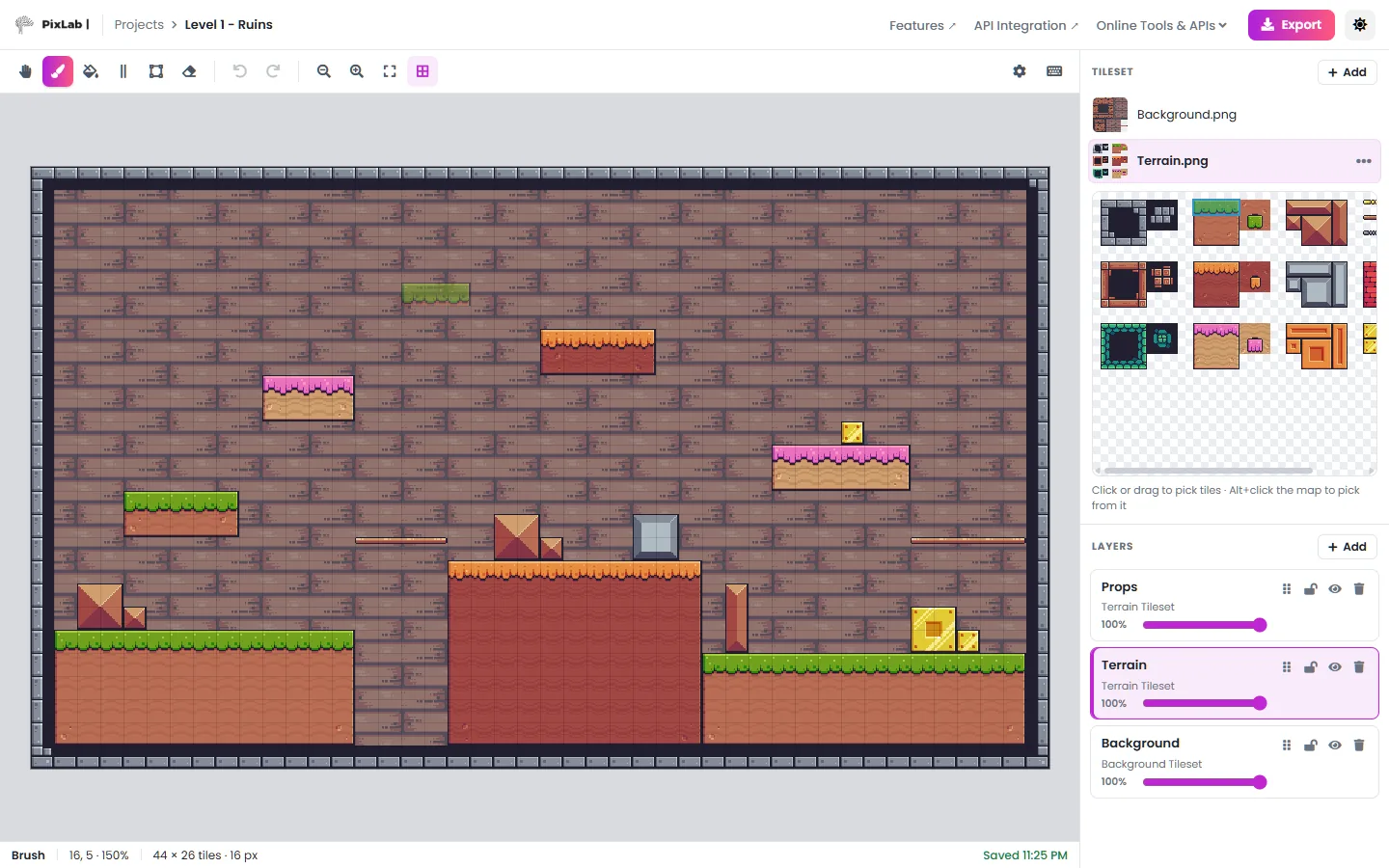
The redesigned PixLab tilemap editor, with a pixel-art level on the canvas and the tileset and layers panels on the right

Export your level to a game engine

Until now, the editor exported a PNG or JPG image, or its own JSON format. Getting a level into an engine meant writing your own importer.

The new Export → Game engine / Tiled map option downloads a .zip with your map in the two formats of the Tiled map editor: .tmx (XML) and .tmj (JSON). The zip also holds the tileset images, one CSV file per layer, and a README with import steps. Most 2D engines and frameworks can read Tiled maps, either natively or with a free plugin:

  • Godot 4: install the free YATI add-on, then add the .tmx or .tmj file and the tileset images to your project. The map is imported as a scene with tile map layers.
  • Unity: install SuperTiled2Unity and copy the .tmx file and the tileset images into your Assets folder. The map becomes a prefab built from Unity Tilemaps.
  • Phaser: load the .tmj file with this.load.tilemapTiledJSON(), add the tileset image, and create one layer per map layer.
  • Unreal Engine: Paper2D can import Tiled JSON maps once you rename the .tmj file to .json. Its importer is old and doesn't support every Tiled feature, so check the result.
  • libGDX, MonoGame, Bevy and other frameworks with a Tiled loader read the .tmx file.
  • Tiled opens the .tmx file directly, so you can keep editing there or convert the map to the other formats Tiled exports, such as GameMaker and Defold.

We checked the exported files with two independent Tiled parsers. The editor doesn't import .tmx files, though: to continue a project in PixLab, keep its JSON backup.

A new workspace

The editor page has a new design, with the same controls in a cleaner layout:

  • A slim header shows where you are ("Projects › your project name"). Double-click the name to rename the project. A single Export button groups the image, game engine and backup exports.
  • The map fills the window. Tools sit in a compact toolbar: painting tools, undo and redo, then the view controls.
  • A status bar under the map shows the current tool, the cell under your pointer, the zoom level, the map size and whether your work is saved.
  • The sidebar has a Tileset panel, with your tilesets and the tile picker on a transparency checkerboard, and a Layers panel.
  • Light and dark themes are both redone.

The home page got the same treatment. Your projects now appear as cards with a preview of the map and when you last edited it (older projects get their preview after their next edit). The New Project dialog lets you set the tile size and the map size before you start.

New tools

  • Rectangle tool (R): drag to fill an area with the selected tiles.
  • Eyedropper: Alt+click the map to pick a tile you already placed.
  • Multi-tile stamps: drag across the tileset to select a block of tiles, such as a tree or a house, and stamp it in one click.
  • Zoom and pan: zoom with the buttons, Ctrl+wheel, a trackpad pinch or the + and - keys. Fit the whole map with 0. Pan with Space+drag, the middle mouse button or the Pan tool. Fixed zoom levels keep pixel art crisp.
  • Grid toggle (G), remembered between visits.
  • Map size: maps are no longer tied to the size of your browser window. Set the size in tiles, up to 500 × 500, and change it later from the cog button.
  • Tile sizes from 1 to 256 px, saved with each project.
  • Tileset margin and spacing, for sprite sheets with gaps between tiles. The picker, the map and both exports use them.
  • Keyboard shortcuts for every tool. Press ? in the editor to see the list.
  • Undo and redo, up to 75 steps.

Safer saving

Projects used to be saved in localStorage, which browsers limit to about 5 MB per site. They now use IndexedDB, which holds much larger projects. Saving is also lighter: a brush stroke no longer rewrites your tileset images. Existing projects are moved over automatically on your first visit.

Saving is also more careful:

  • If a save fails, for example because browser storage is full, the editor tells you and offers to download a backup. Before, it failed silently.
  • If the same project is open in two tabs, you get a warning, and closing the older tab no longer overwrites the newer save.
  • Export → JSON (project backup) saves the whole project, tileset images included. Import it on the home page to restore it in any browser or on another computer.
  • You can duplicate a project to try a variation.
  • The home page shows how much storage your projects use.

Your projects are stored only in your browser, and Safari can delete site data after 7 days without a visit. Keep a JSON backup of anything important.

Fixes

Among the bugs fixed in this update:

  • The brush no longer keeps painting after you release the mouse outside the map.
  • The grid and the fill tool are now correct on high-resolution screens and at 125% or 150% display scaling.
  • The default tile size is now 16 px, matching the built-in tilesets.
  • The "Drag-n-drop your image here" pop-up no longer appears every time you open a project.
  • Painting with a tileset that doesn't belong to the current layer now offers to create a new layer, instead of doing nothing.
  • The eraser works without picking a tile first.
  • Selecting tiles by dragging right-to-left or bottom-to-top now selects the right area.
  • Project, layer and tileset names are always shown as plain text.

Lighter and faster

We removed a lot of code the editor no longer needed, including a 360 KB drawing library that was only used to size the canvas. Even with all the new features, the editor page now loads about a quarter less JavaScript and CSS than before. The libraries it relies on are updated to current versions, and fonts are served from our own site, so the home page makes no requests to third-party servers.

What's next

A few ideas we're looking at: flipping and rotating tiles, per-tile properties such as "solid" (exported as Tiled tile properties), and offline use. If there's something you'd like to see, let us know.

Try it

The editor is free and needs no sign-up. Open it at tilemap.pixlab.io, pick a built-in tileset or import your own, and start painting. For a full overview of the features and the engine export, see the 2D level editor page on pixlab.io.
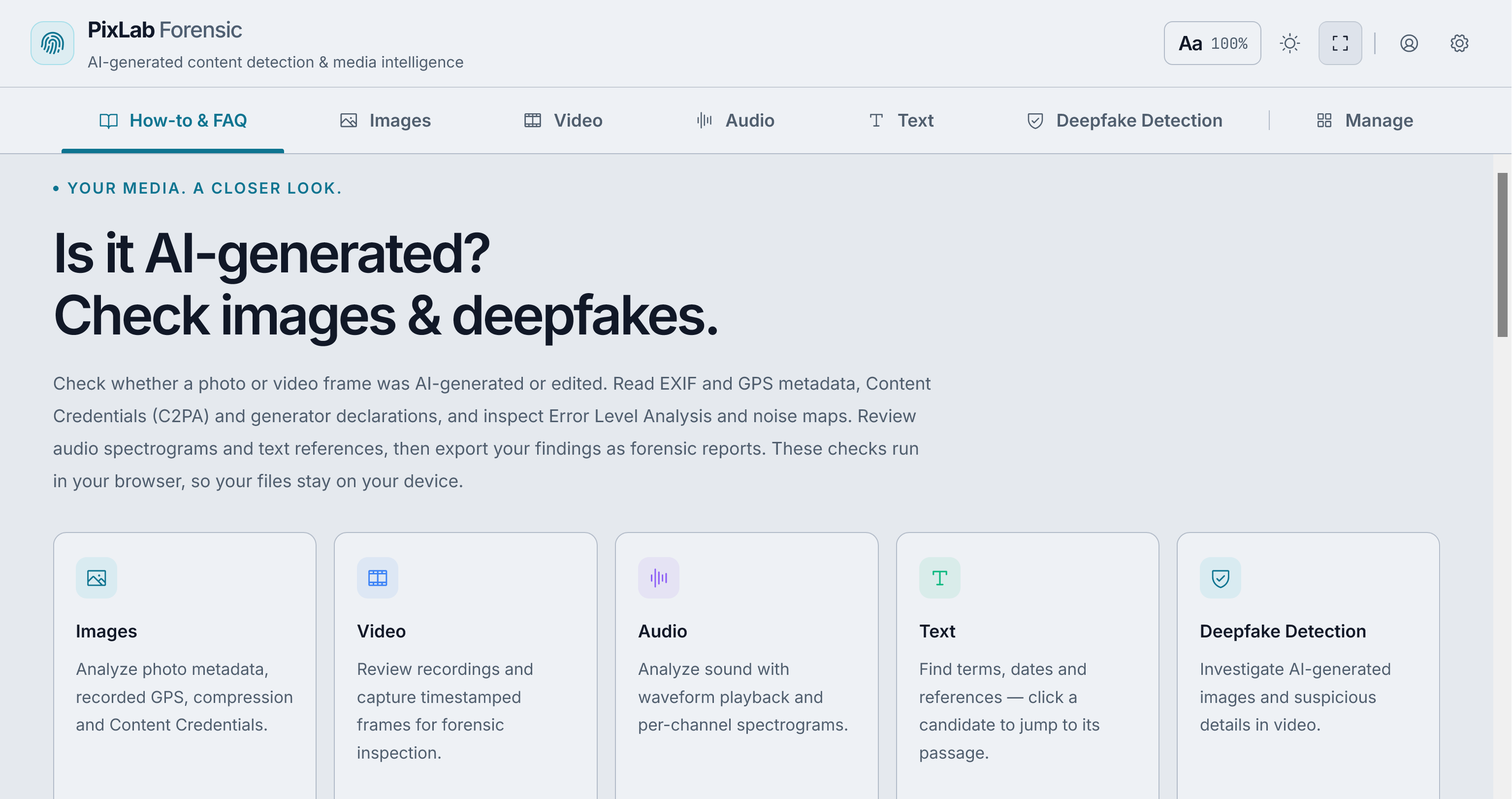
Announcing PixLab Forensic: Free AI Content Detection with EXIF and GPS Photo Analysis

AI-generated photos and videos now look real enough to fool most people. A fake image can spread on social media in minutes, and a convincing deepfake video can damage a reputation or support a scam. Telling real content from fake has become a daily need, not only for journalists.

Today we are making PixLab Forensic free for everyone. It is a browser-based tool that helps you check whether a photo or video is AI-generated, edited or authentic, and shows you the evidence behind the answer. There is nothing to install, and most features work without an account.

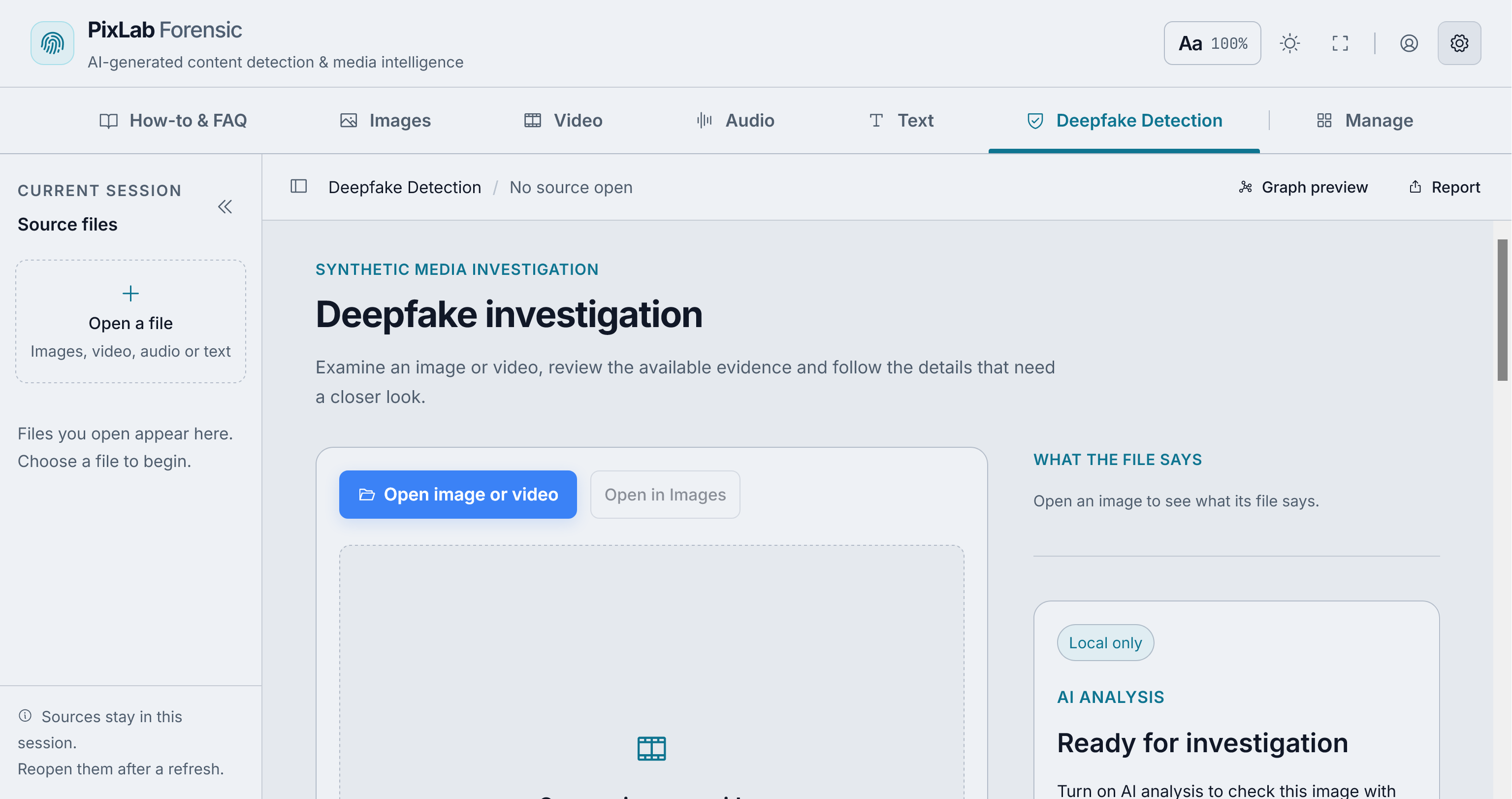
landing page

Try PixLab Forensic for free

What is PixLab Forensic?

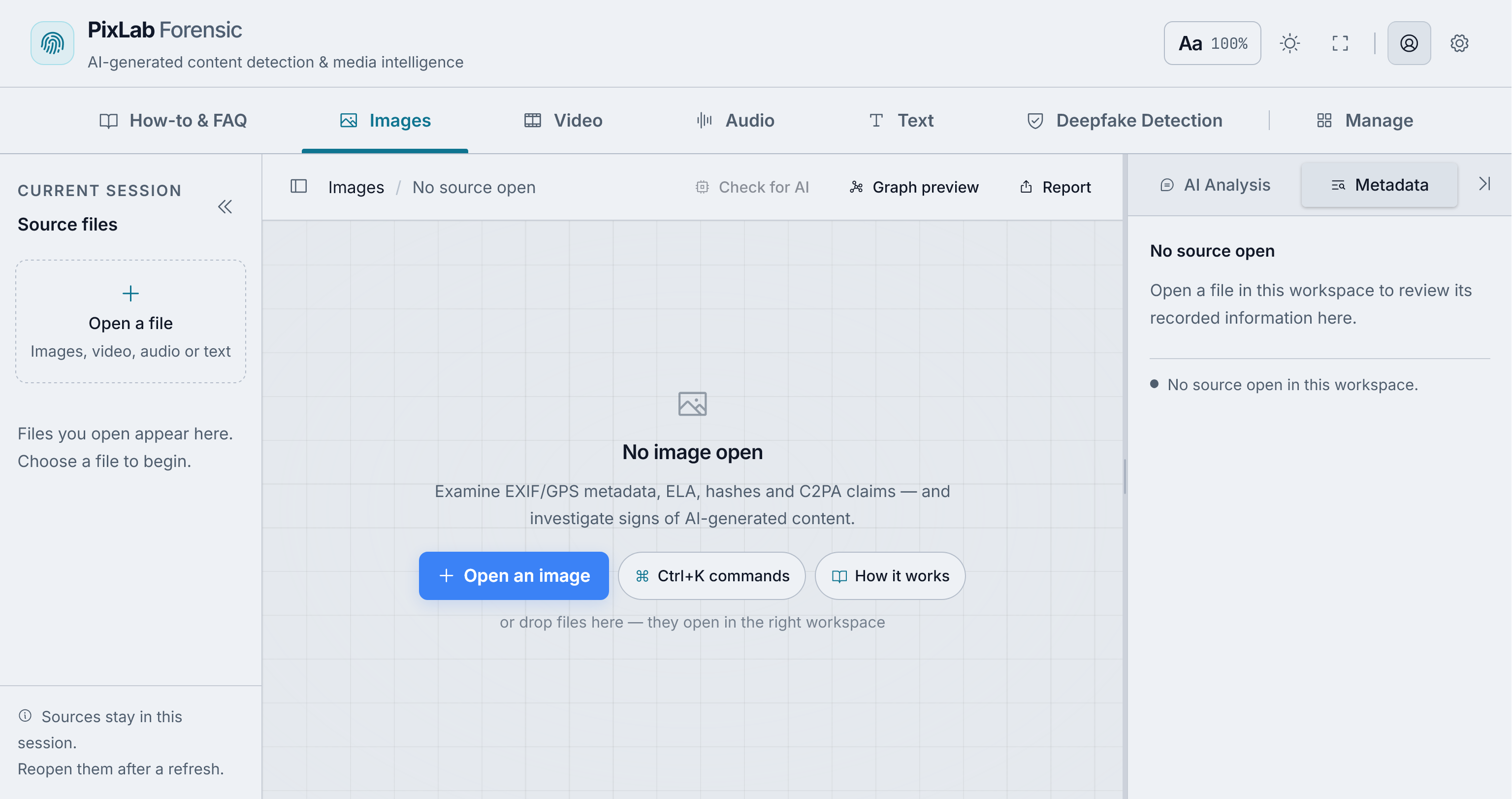
PixLab Forensic brings several verification tools into one place. You open a photo, video, audio file or text in your browser, and it shows you what the file contains and where it may have been changed. For photos and video frames, an optional AI check estimates whether the content was generated by AI.

It is built for people who need a reliable answer, such as journalists, fact-checkers, researchers, investigators, moderators and anyone who wants to check content before sharing it.

What you can do with PixLab Forensic

  • Detect AI-generated images. Run the AI check on a photo to see whether it was likely created by an AI image generator. The result comes with an explanation and the signals the detector found.
  • Spot deepfakes in videos. Pause a video on the moment you want to check, capture that frame and run the AI check on it.
  • See hidden photo data (EXIF). Most photos carry information you cannot see: the camera or phone model, the date it was taken, the editing software used and sometimes the GPS location. PixLab Forensic reads this data and shows the location on a map.
  • Check Content Credentials. Some images include a digital label, also called C2PA, that records how they were made. It can show that an image came from an AI tool such as Adobe Firefly, and whether the label was signed.
  • Find edited areas. Error Level Analysis (ELA) and noise maps highlight parts of a photo that were saved differently from the rest, which can point to editing.
  • Find copies and known files. Each file gets a digital fingerprint, so you can spot exact copies and similar-looking images, or compare files against a list of known images.
  • Review audio and text. Listen closely to recordings with a waveform and frequency view, and search text for links, emails and dates.
  • Save and share your findings. Keep your files and notes in a project and export a report as a PDF or data file.

How to check if a photo is AI-generated

content-check

  1. Go to forensic.pixlab.io and open the photo in Deepfake Detection. The local checks start right away, and the photo stays on your device.
  2. Read the list under "What the file says". It shows clues found inside the file, such as an AI label in the Content Credentials, the editing software used, or a preview image that no longer matches the photo.
  3. For a second opinion, choose Check for AI. You will be asked to turn on AI analysis and sign in with a free PixLab account the first time.
  4. Compare the AI result with the clues from the file and with other sources before you decide.

How to check a video for deepfakes

enter image description here

  1. Open the video in Deepfake Detection or in the Video tab.
  2. Play it and pause on a frame where the face or scene looks suspicious.
  3. Capture the frame and choose Check for AI.
  4. Repeat for other key moments. Each result applies only to the frame you checked, not to the whole video.

Deepfake detection powered by FACEIO technology

PixLab Forensic does not start from zero. Its deepfake detector is borrowed from FACEIO Meeting Shield, our Chrome extension that warns users about deepfake and fake video during live calls on Google Meet, Zoom, Microsoft Teams and Webex.

It also uses the face anti-spoofing technology behind FACEIO face spoof protection, which helps FACEIO detect people trying to fool face login with printed photos, replayed videos, phone screens or masks.

The same technology now helps you check a single photo or video frame, together with the evidence stored in the file.

Your files stay on your device

Photos, videos and documents under review are often private. PixLab Forensic is designed with that in mind:

  • Reading photo data, GPS, Content Credentials, editing checks, video frames, audio and reports all run inside your browser. Opening a file does not upload it.
  • AI analysis and online maps are off by default. When you choose Check for AI, only the photo or frame you are checking is sent for analysis. For text, only a short excerpt is sent.
  • Saved projects stay in your browser, not on our servers.

What the results mean

No tool can prove with full certainty that a photo or video is real. Photo data can be edited or removed, and editing checks can react to normal saving and resizing. An AI check gives an estimate, not proof, and a result of "no AI generation detected" does not guarantee that a photo is unedited.

This is why PixLab Forensic shows each clue separately and explains its limits. You get the evidence, and you make the final decision.

Free to use

The browser tools are free, with no account and no installation. The optional AI check needs a free PixLab account, and plan limits may apply.

Frequently asked questions

Is PixLab Forensic free? Yes. All browser tools are free and work without an account. The optional AI check needs a free PixLab account, and plan limits may apply.

Do I need to install anything? No. PixLab Forensic runs in a modern web browser on a computer or phone.

Are my files uploaded? No. Opening a file does not send it anywhere. A photo, video frame or text excerpt is sent only when you choose an AI check.

Can it detect AI-written text? No. The Text tab helps you search a document and follow its links, emails and dates, but it does not detect whether text was written by AI.

Can it check a whole video for deepfakes? Not yet. Capture the frames you want to examine and check each one. Each result applies only to that frame.

Can it prove that a photo is real? No tool can do that alone. PixLab Forensic shows you the evidence in the file and an optional AI estimate, so you can reach a decision with other sources.

Learn more


Start checking photos and videos with PixLab Forensic →

Writing Code by Hand Is No Longer Economically Viable for Most Software Companies

As software engineers, we used to get a particular joy from releasing something we had spent months, sometimes years, building. Late nights at home, long evenings at the office, a codebase that finally felt stable enough to ship.

It could be a team finishing a difficult release or a solo developer publishing a slightly messy Objective-C or SwiftUI app. You knew the internal because you had written it. Getting it to work was part of the pleasure, not merely something standing between you and the release.

Our view is that this era is over as the default model for commercial development. Writing everything by hand is no longer economically sensible for most for-profit software companies, however much we might enjoy it.

Enjoying the work does not justify the expense

Coding agents can now implement features across multiple files, run tests and work through corrections. In an agent-led project, the developer can direct the implementation without personally writing it. This is already a working development model, not just a promise about future tools.

That changes the justification for doing the same work manually.

When an assisted implementation costs less after testing and corrections, the extra time spent hand-coding needs to produce something worth paying for. Better reliability or maintainability would qualify. Personal satisfaction would not.

For a solo developer, the calculation is no different. The hours might not appear on a payroll, but they still come out of the time available to support customers, sell the product and make a living.

You can prefer writing the implementation yourself and still recognize that it is the wrong commercial decision.

The working day is changing

For a developer working this way, the day can consist largely of prompting Claude or Codex, checking progress and correcting instructions. Breaking down tasks, supplying missing context and setting up reliable checks become substantial parts of the work. Some agent-led teams even delegate much of the code review to other agents.

Instead of implementing a feature, you explain what it must do. You check whether the agent understood. You tell it not to rewrite an unrelated module or introduce a dependency the project does not need. Then you verify the result.

That requires technical knowledge. It does not necessarily provide the same enjoyment as solving the implementation yourself. Engineers interviewed in Anthropic’s research described precisely this tension: greater output alongside missing parts of the coding work they used to do.

We should be able to admit that without pretending the productivity gains are irrelevant, or that everyone will find supervising agents equally rewarding.

This is the shift worth discussing

In our view, prompting and monitoring agents is becoming a central part of software development, rather than an occasional shortcut inside it.

The same approach extends beyond programming. Our Think-Act Desktop Agent is a general-purpose assistant that lets users describe a task, provide context, supervise supported actions and review the result. It brings that pattern to everyday computer work rather than just code.

That is a significant change for people who chose this profession because they enjoyed writing software. We can still do it for pleasure, for learning, or when a particular problem genuinely benefits from a manual implementation.

But commercial work has a different constraint. When the same result can be delivered reliably at a lower cost, a company needs a reason to choose the more expensive approach.

“I enjoyed building it myself” used to fit comfortably into the job. It is no longer enough to justify the time.

Introducing PixLab's Image Deblur and Image Upscale APIs

Blurry product photos and low-resolution campaign assets can interrupt an otherwise automated publishing workflow. Today, PixLab is expanding its image-processing toolkit with two new REST endpoints: the Image Deblur API and the Image Upscale API.

Developers can now add photo deblurring, image enhancement, and 2x upscaling to applications used by marketing teams, ecommerce businesses, creative agencies, and publishers. Upload an image or submit its public URL, then incorporate the processed result into your existing workflow.

Both endpoints are available starting with the Starter plan. Get your API key from the PixLab Console or compare PixLab plans and pricing.

Image Deblur API: Reduce Motion Blur in Photos

DEBLUR API

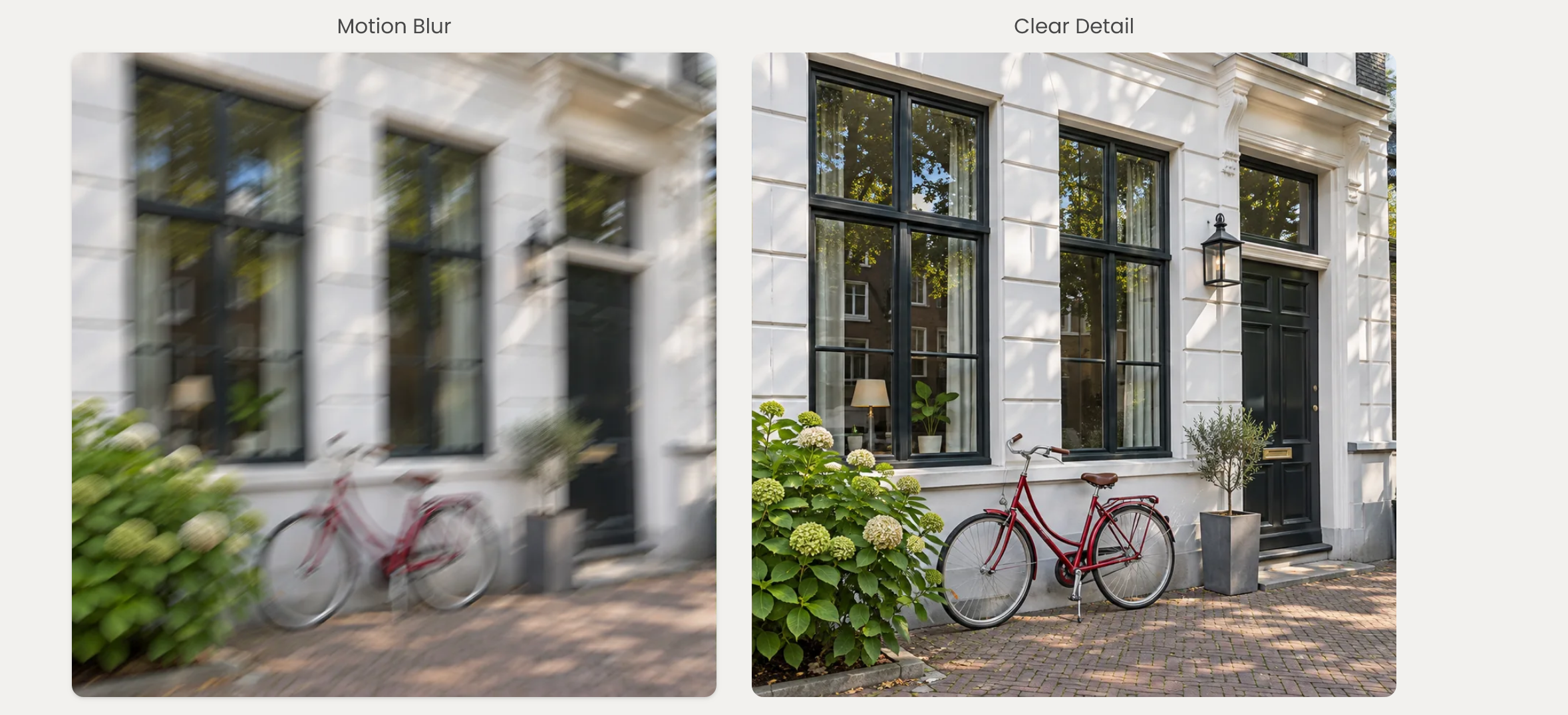
The PixLab Image Deblur API reduces motion blur and camera shake in photographs without changing their original dimensions. It is designed for workflows where a photo needs clearer detail, rather than a larger canvas.

Call the DEBLUR endpoint to process product photography, property listings, campaign images, or other photos in your application. No image mask, bounding box, or text prompt is required.

For marketing teams, this means adding a restoration step before reviewing event photography or lifestyle images for publication. Ecommerce platforms can apply the same process to blurred supplier photos, while real estate teams can prepare camera-shaken interior and exterior images for their listings.

Explore the Image Deblur API documentation and code examples for request parameters and integration details.

Image Upscale API: Enlarge Photos 2x or Enhance at Original Size

UPSCALE endpoint

The PixLab Image Upscale API provides AI image enhancement and super-resolution through the UPSCALE endpoint.

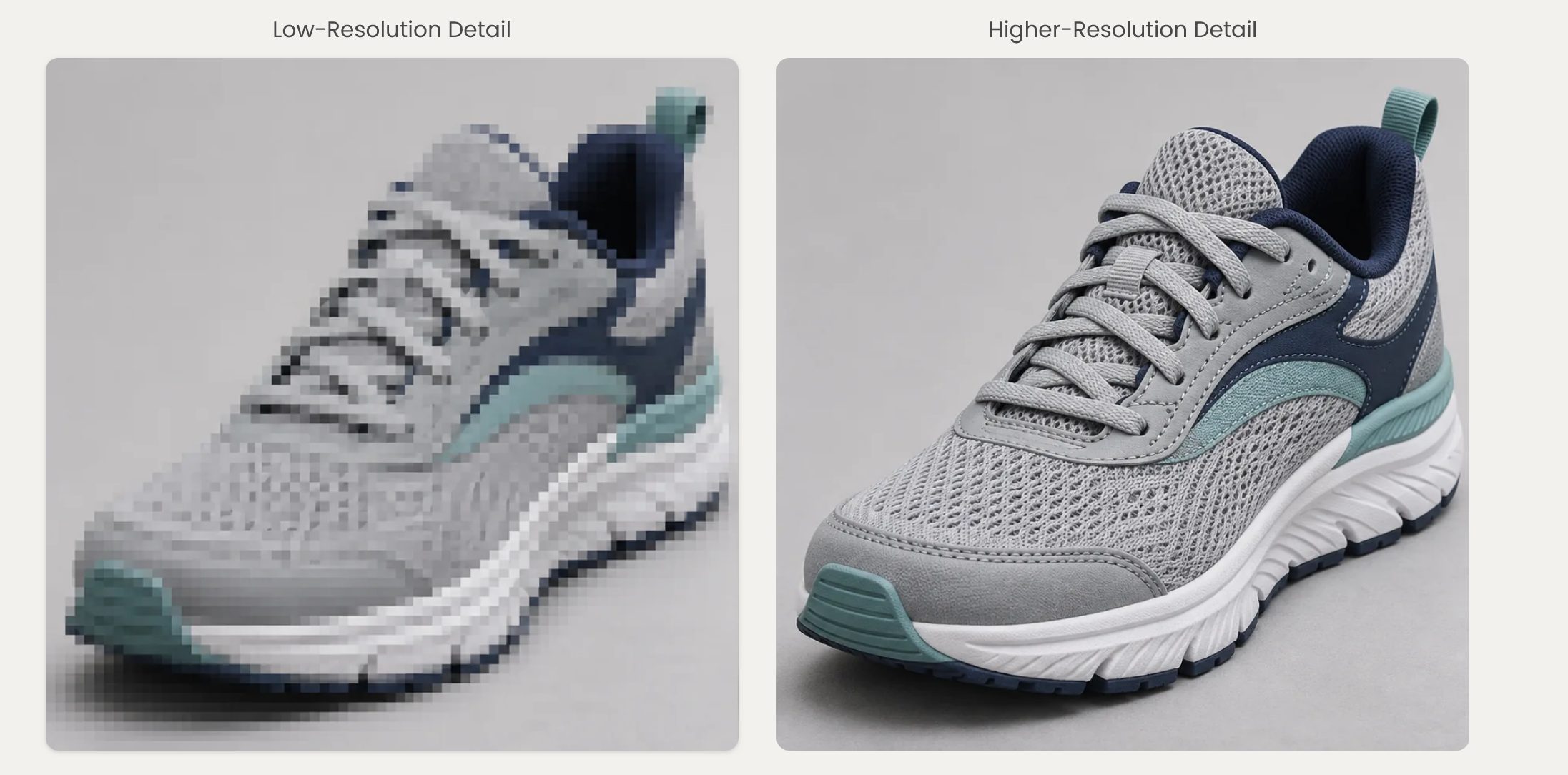
  • 2x upscaling: double the image's width and height while preserving its aspect ratio. A 1000 by 750 pixel image becomes 2000 by 1500 pixels.
  • Original-size enhancement: use scale=1 to enhance an image without enlarging it.

The default scale=2 mode is useful when small product photos need to fit larger galleries or campaign layouts. Original-size enhancement is an alternative when your publishing workflow already has the dimensions it needs.

Unlike ordinary resizing, AI upscaling estimates additional detail from image patterns. It can create a clearer-looking enlargement, but it cannot guarantee recovery of information missing from the source.

See the Image Upscale API documentation for supported parameters, output options, and examples in Python, JavaScript, PHP, and Ruby.

Built for Marketing Teams, Ecommerce, and Creative Workflows

These endpoints fit into the systems your team already uses. Developers can integrate them into a product catalog, content management system, digital asset library, or custom photo-editing application.

  • Marketing teams: prepare photography for social media posts, email newsletters, landing pages, and campaign updates.
  • Ecommerce and marketplaces: process supplier and seller photos for product detail pages, catalog imports, and larger image galleries.
  • Creative agencies: add deblurring or enhancement to client asset preparation before design and approval.
  • Real estate and hospitality: improve the presentation of property and accommodation photos while retaining their proportions.
  • Publishers and SaaS platforms: integrate image restoration and enlargement into editorial, upload, and editing workflows.

For bulk processing, submit one image per request and distribute work through your existing queue. Keep concurrency within your account's rate limits, and review important assets before publication. Contact PixLab to discuss sustained high-volume requirements.

Extend Your Existing PixLab Image-Processing Workflow

Deblurring and upscaling complement PixLab's existing image-cleanup endpoints:

  • The Background Removal API isolates subjects and produces transparent cutouts for product listings, campaign compositions, and branded layouts.
  • The Text and Watermark Removal API removes captions, labels, timestamps, and permitted watermarks from images you own or are authorized to modify.

Use each endpoint independently, or combine only the operations a particular asset needs. For example, an ecommerce application might enlarge a small product photo, while a marketing workflow might remove an outdated authorized text overlay before preparing new campaign copy.

Available Starting with the Starter Plan

You do not need an Enterprise subscription to get started. Image Deblur and Image Upscale are available from the PixLab Starter plan, with usage subject to your plan's allowance and account limits.

Review the PixLab pricing page to choose the plan that fits your workload. You can manage your API key and monitor usage in the PixLab Console.

Start Building

  1. Sign in to the PixLab Console and get your API key.
  2. Choose the Image Deblur API for motion blur, or the Image Upscale API for enlargement and enhancement.
  3. Submit a representative image using a file upload or public URL.
  4. Compare the result with the original, then integrate the endpoint into your application.

Image quality still depends on the source. Severe blur, heavy compression, and missing detail can limit restoration. Keep original files and review product labels, faces, logos, and fine textures before publishing processed images.